English
Code, LaTeX & Markdown
This tutorial covers code blocks, LaTeX/TikZ elements, and Markdown blocks.
Code blocks
- Click Code in the toolbar.
- A code block element appears. Double-click it to open the code editor.
- Select a language from the dropdown (Python, JavaScript, TypeScript, C++, etc.).
- Write or paste your code. Syntax highlighting is applied automatically.
- Click Apply to save.
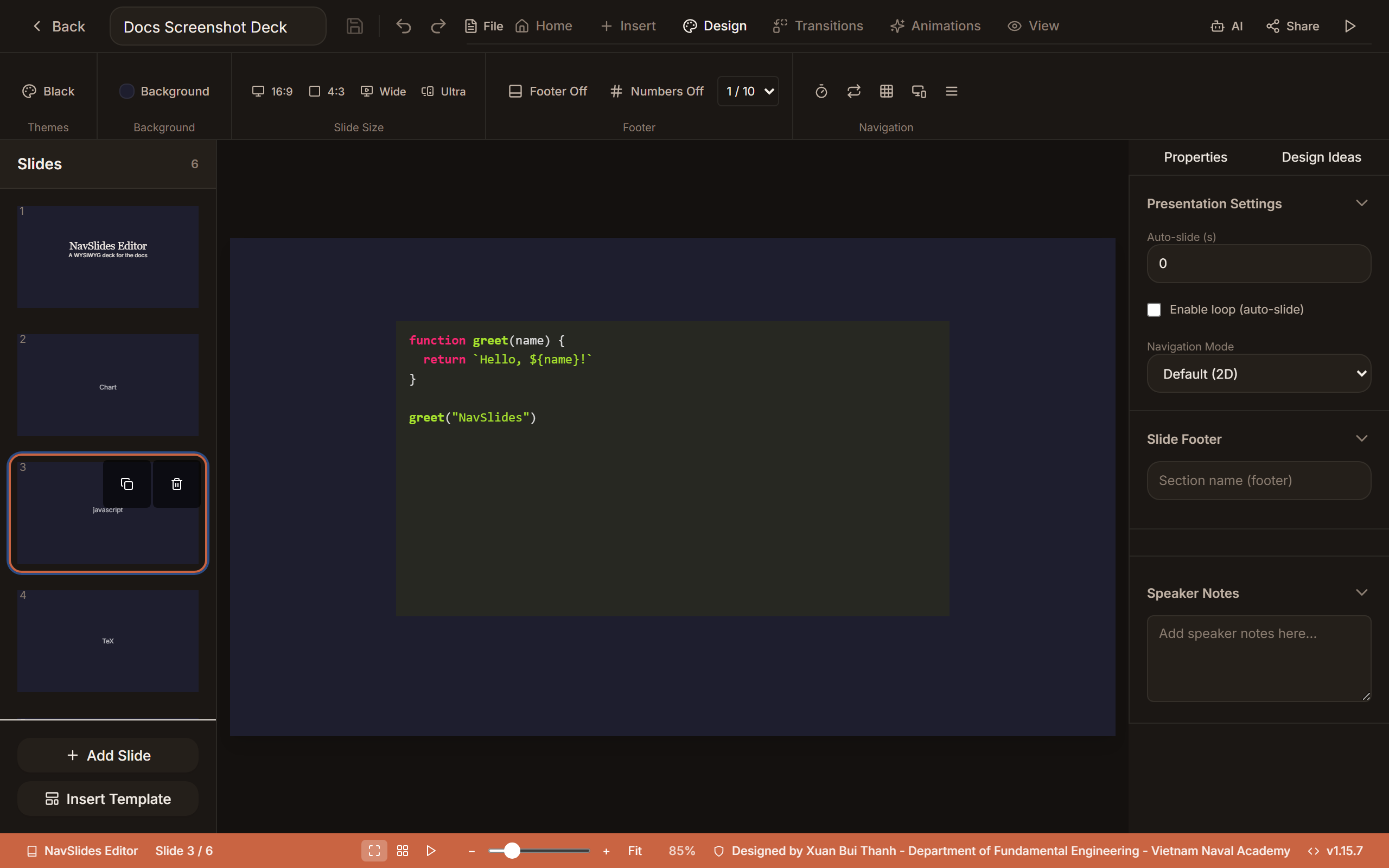
Example output
LaTeX & TikZ
- Click the TeX button in the toolbar.
- A LaTeX element appears. Double-click it to open the LaTeX editor.
- Enter LaTeX code — display math, aligned equations, or TikZ diagrams.
- A live preview renders on the left as you type.
- Click Apply to save.
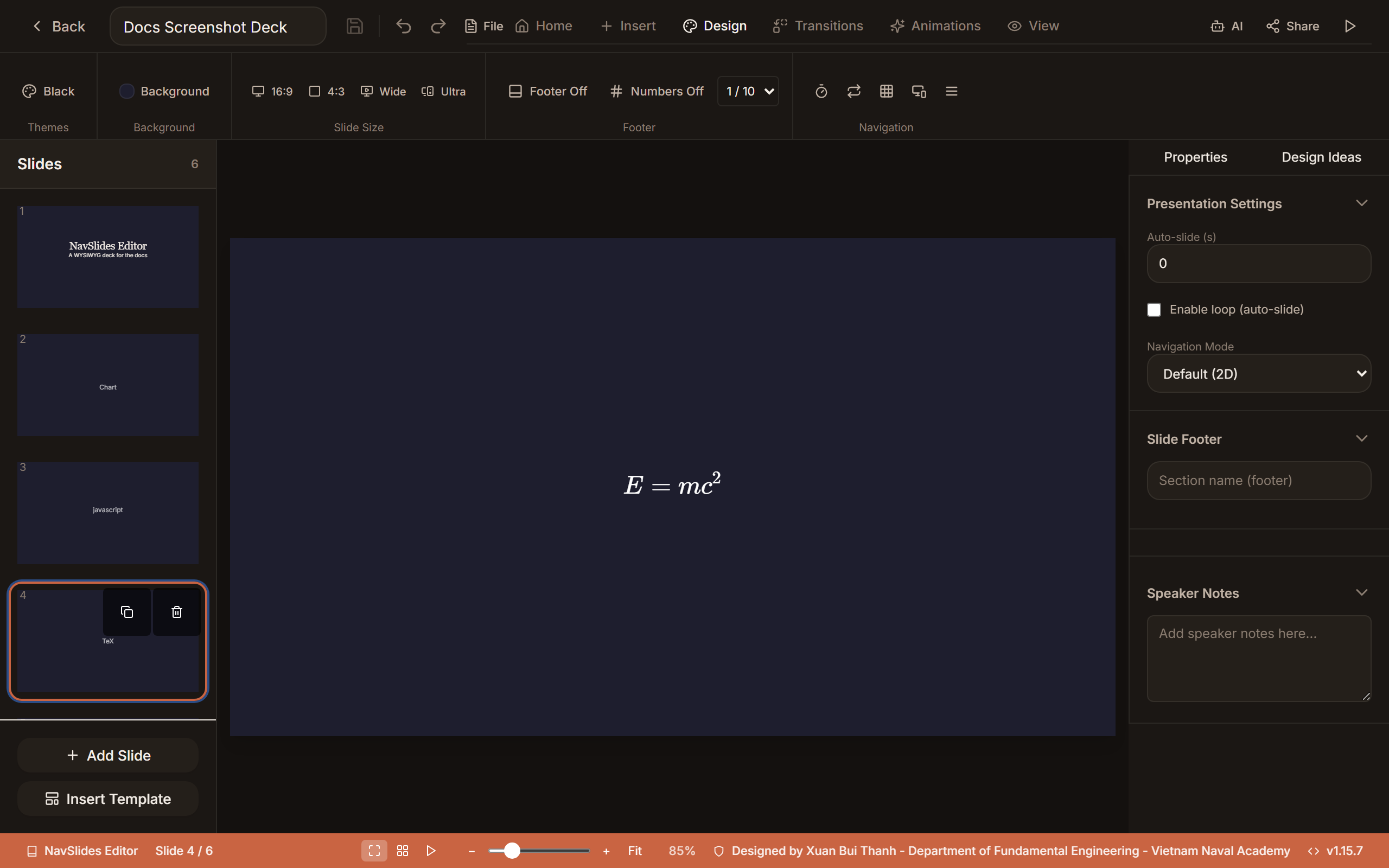
Example output
TIP
For TikZ diagrams, the editor uses TikZJax for client-side rendering. Wrap your code in \begin{tikzpicture}...\end{tikzpicture}.
Markdown blocks
- Click the Markdown button in the toolbar (or find it under the insert menu).
- A markdown element appears. Double-click it to edit.
- Write standard Markdown — headings, lists, links, bold/italic, code blocks.
- The rendered output appears when you deselect the element.
Markdown blocks are useful for quickly inserting formatted text without manual styling.