English
Getting Started
What is NavSlides Editor?
NavSlides Editor is a self-hostable, browser-based WYSIWYG presentation editor built on top of reveal.js. It gives you the visual polish of modern slide tools without requiring a cloud account — run it on your laptop, a home server, or a Docker container.
Unlike editing raw Markdown or HTML reveal.js files, NavSlides Editor lets you:
- Click and type directly on slide elements with rich formatting
- Drag, resize, and rotate text boxes, images, shapes, and code blocks visually
- Preview instantly — no build step, no reload
- Export anywhere — HTML, offline HTML, PDF, or PPTX
Key capabilities
- Rich text formatting via TipTap: headings, bold/italic/underline, font size & color, highlight, lists, tables, and code blocks
- Ribbon UI — a familiar PowerPoint-style ribbon (Home, Insert, Design, View) with a contextual Format tab that appears when an element is selected; an explicit More menu keeps lower-frequency groups reachable at constrained widths
- PowerPoint-style status bar — zoom slider with Fit controls, current slide position, and a Normal / Slide Sorter / Present view switcher; status bar, ribbon, canvas controls, shortcuts, and command palette share the same zoom state
- Adaptive workspace — the slide navigator and shared Properties / Design Ideas inspector dock when space permits and open as overlays at narrower editor widths so the canvas stays usable
- Mouse, pen, and touch editing — select, drag, resize, rotate, and crop through one pointer interaction model, with 2-finger pinch zoom on touch devices
- LaTeX & TikZ — write display math or full TikZ diagrams in a split-pane editor with live preview
- Charts — insert bar, line, pie, doughnut, radar, and polar area charts powered by Chart.js
- Slide navigation — first-class vertical (child) slides, reorderable slides, speaker notes
- Themes & presets — 11 built-in reveal.js themes plus 39 token-based design presets across 7 categories
- Footer sequences — automatic section progress footers for academic talks
- Export options — standalone HTML, offline HTML (CDN inlined), PDF, PPTX, shareable links, GitHub push
- Cloud sync — Proton Drive, S3, Google Drive, or any rclone remote
Choose your installation method
NavSlides Editor can be run in three ways:
| Method | Best for |
|---|---|
| Docker (recommended) | Servers, always-on setups, teams |
| Desktop App | Single-user, offline, local files |
| Node.js from source | Development, customization |
See the Installation guide for step-by-step instructions.
Opening the editor
Once running, navigate to http://localhost:3002 in your browser. You'll land on the home screen, which shows:
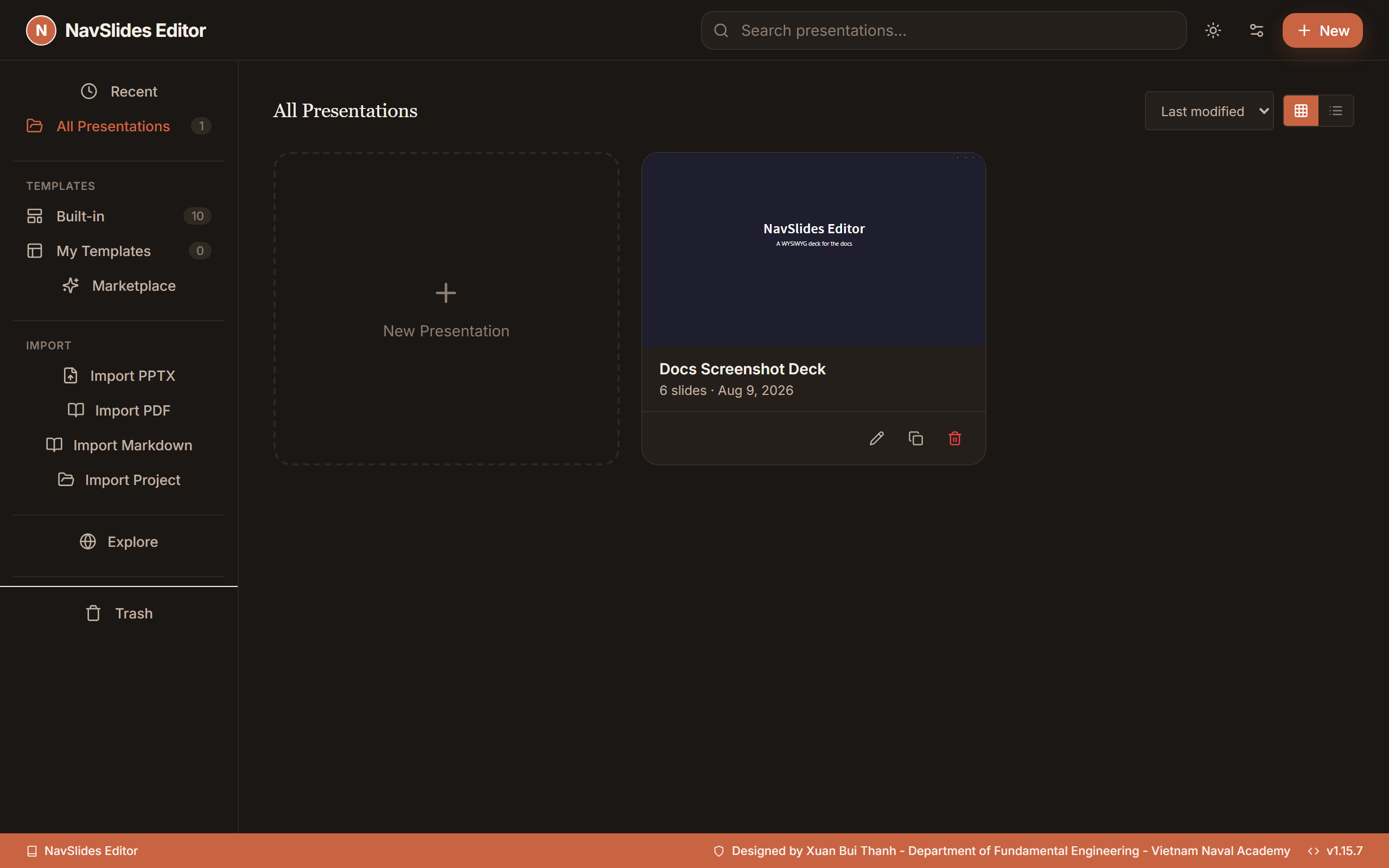
- New Presentation — create a blank deck or pick a template
- Recent files — re-open presentations you've worked on before
- Open file — load an existing
.jsonpresentation file from disk
Your first slide
- Click New Presentation on the home screen.
- Choose a template (or start blank).
- Click the title text on the first slide and start typing.
- Use the ribbon's Home tab (or the contextual Format tab) to change font, size, or color.
- Press Escape to deselect and return to slide-selection mode.
- Click the + button in the slide panel to add a new slide.
Changes auto-save after a short delay. Press Ctrl+S (or Cmd+S on macOS) to save immediately; the quick-access Save button, File menu, and command palette use the same save command.
Next steps
- Installation — detailed setup for Docker, desktop, and source
- Your First Presentation — a full walkthrough from blank deck to exported file